
Screen Pixel Fixer
Detect and repair dead or stuck pixels on your display
How It Works
Stuck Pixels: Display one color constantly. Rapid color cycling can unstick them.
Dead Pixels: Appear black and may not be fixable, but the fix attempt is worth trying.
The Fix: Fullscreen rapid color cycling stimulates pixels to reset to normal function.
Select Mode
Duration
Photosensitivity Warning
This tool uses rapidly flashing colors. Do not use if you have epilepsy or are sensitive to flashing lights.
Press ESC or click to exit
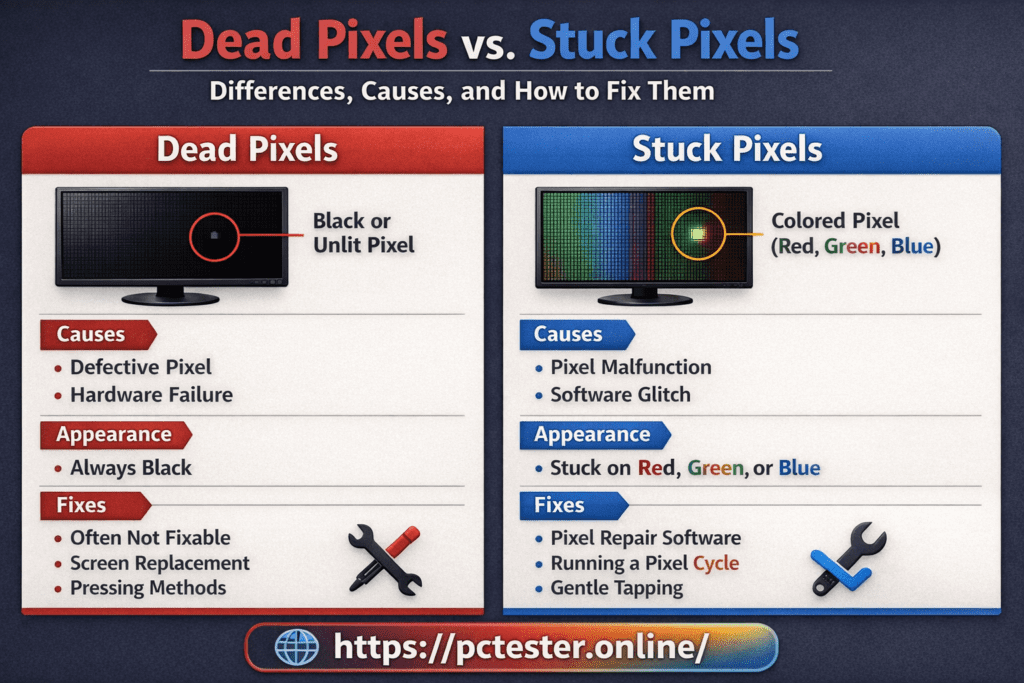
Dead Pixels vs. Stuck Pixels: Differences, Causes,
and How to Fix Them
Whenever you plan to buy a laptop, computer, or any display-based device,
it is extremely important to check it properly before finalizing your purchase. Many display issues are not visible at first glance and can only be detected using specialized testing tools.
To ensure accurate testing, you can use tools available on our website pctester, which are designed to thoroughly examine your computer or screen and provide highly reliable results.
Why Screen Testing Is Important
A display may look perfectly fine on the surface, yet still contain internal defects. These issues often go unnoticed unless proper diagnostic tools are used.
That is why every time you buy a new or used screen, you should carefully test it for dead pixels and stuck pixels.
Modern screens are made up of millions of tiny pixels.
For example:
-
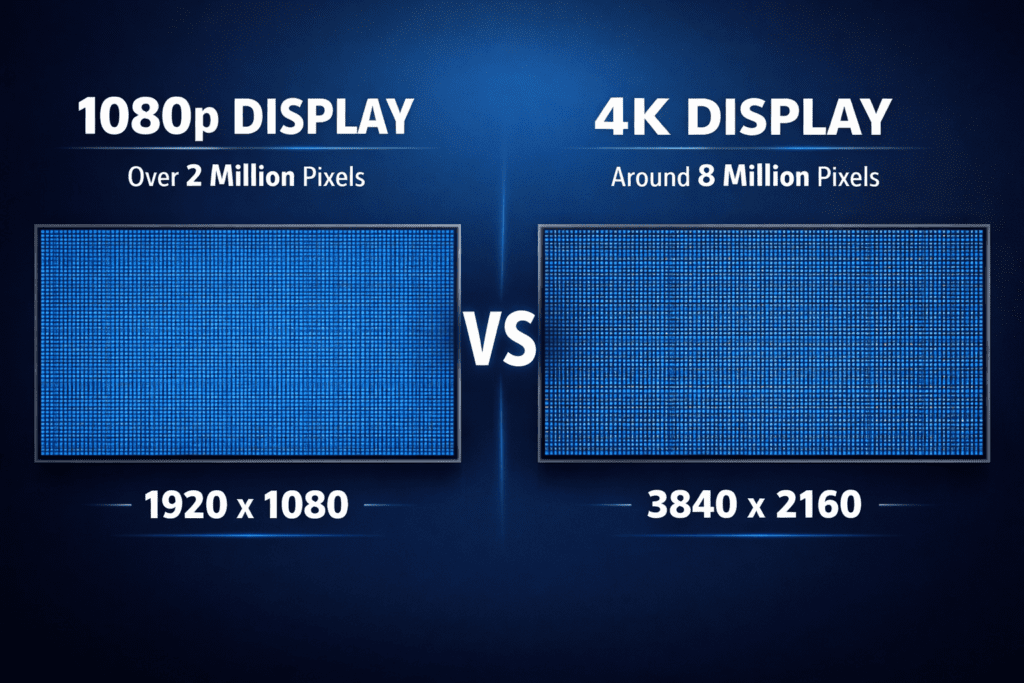
A 1080p display contains over 2 million pixels
-
A 4K display contains around 8 million pixels
-
Even a single faulty pixel can affect your viewing experience.
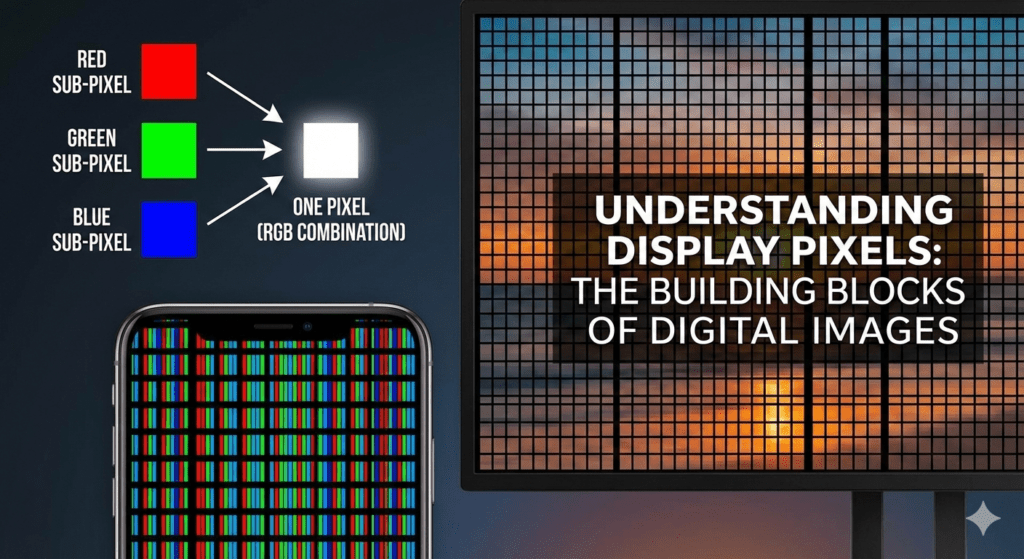
Understanding Display Pixels
n today’s digital world, display screens are everywhere—computers, laptops, smartphones, and more. These screens are composed of countless tiny dots that work together to display images, text, and colors.
Each of these tiny dots is known as a pixel.
When pixels function correctly, they display colors and light accurately.
However, sometimes pixels malfunction, leading to what we commonly call dead pixels or stuck pixels.
What Is a Dead Pixel?
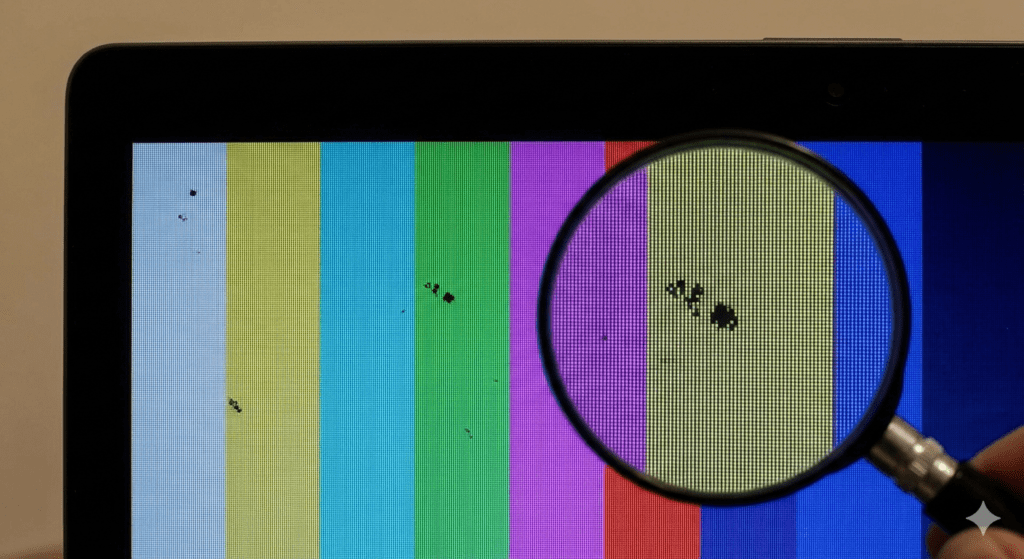
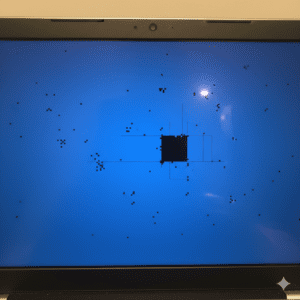
A dead pixel is a pixel that no longer functions and appears as a black dot on the screen.
Key Characteristics of Dead Pixels:
-
Can appear on both new and old screens
-
Directly related to hardware failure -
The pixel receives no electrical energy
-
Usually permanent in nature
Unfortunately, dead pixels are extremely difficult to fix. In most cases, there is a 99% chance that a dead pixel cannot be repaired, as the pixel is completely non-functional.
What Is a Stuck Pixel?
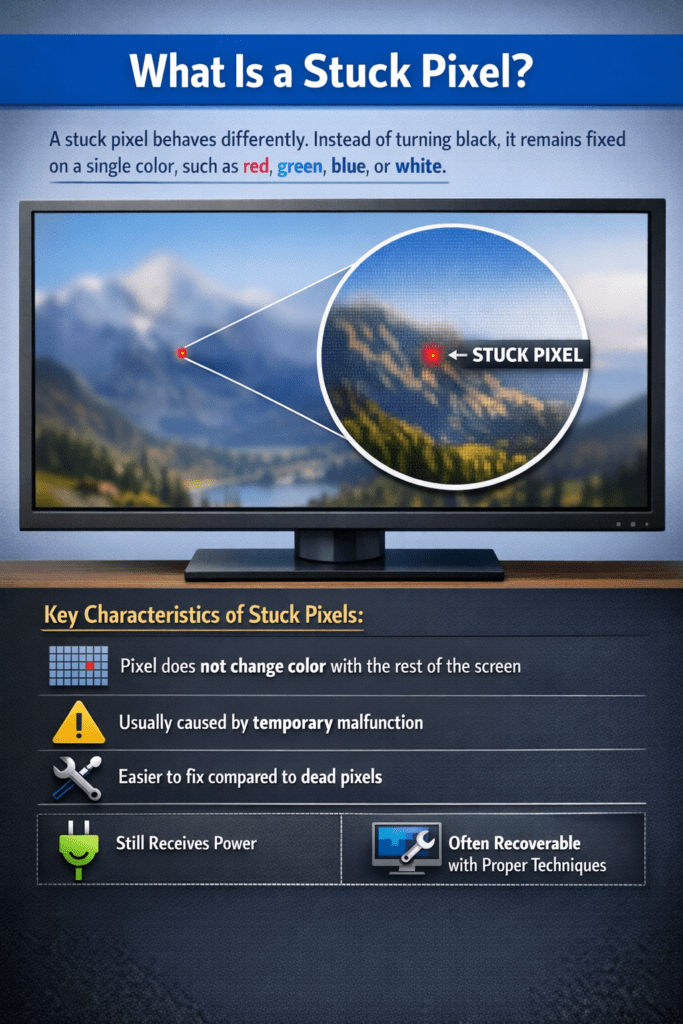
A stuck pixel behaves differently. Instead of turning black, it remains fixed on a single color, such as red, green, blue, or white.
Key Characteristics of Stuck Pixels:
-
Pixel does not change color with the rest of the screen -
Usually caused by temporary malfunction -
Easier to fix compared to dead pixels
Because a stuck pixel still receives power, it often recovers with proper techniques or software-based solutions.
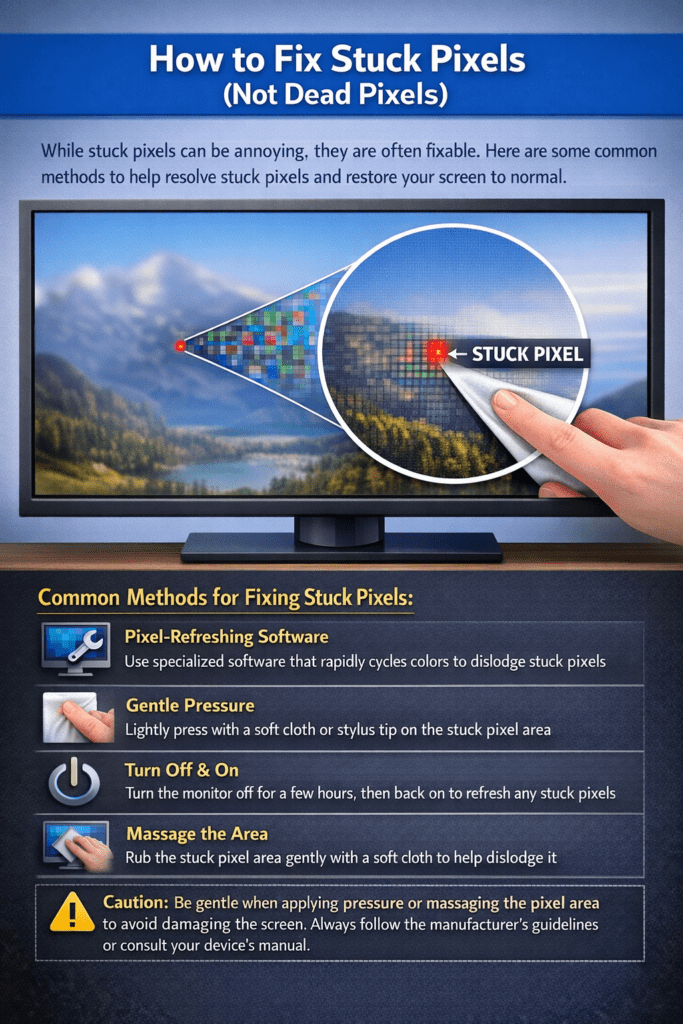
How to Fix Stuck Pixels (Not Dead Pixels)
⚠️ Note: The following methods apply only to stuck pixels, not dead pixels.
1. Change Screen Resolution
Sometimes, minor adjustments in resolution can reset pixel behavior.
-
Go to Windows Settings -
Open Display Settings -
Increase or decrease the screen resolution -
After a short time, revert to the original resolution
This method can sometimes resolve stuck pixels.
2. Use Online Pixel Fixing Tools
Use the Tool on the Top of this page !
Online tools such as Screen Pixel Fixer
rapidly cycle colors on your screen to stimulate stuck pixels and restore normal behavior.
For getting batter results make sure you can run the test up to 10 Minutes
3. Detection Mode
To identify faulty pixels:
-
Click on “Detect Pixels” -
Carefully observe the screen -
If a dot appears different from the rest of the display, the screen may be defective
4. Fix Mode
To attempt fixing stuck pixels:
-
Click on “Fix Pixel” -
The screen will begin changing colors rapidly
-
Let the process run for 10 minutes
If the issue persists, repeat the process up to three times, allowing a 10-minute break between each attempt.
Important:
Avoid staring at the screen continuously during this process due to rapid brightness and color changes.
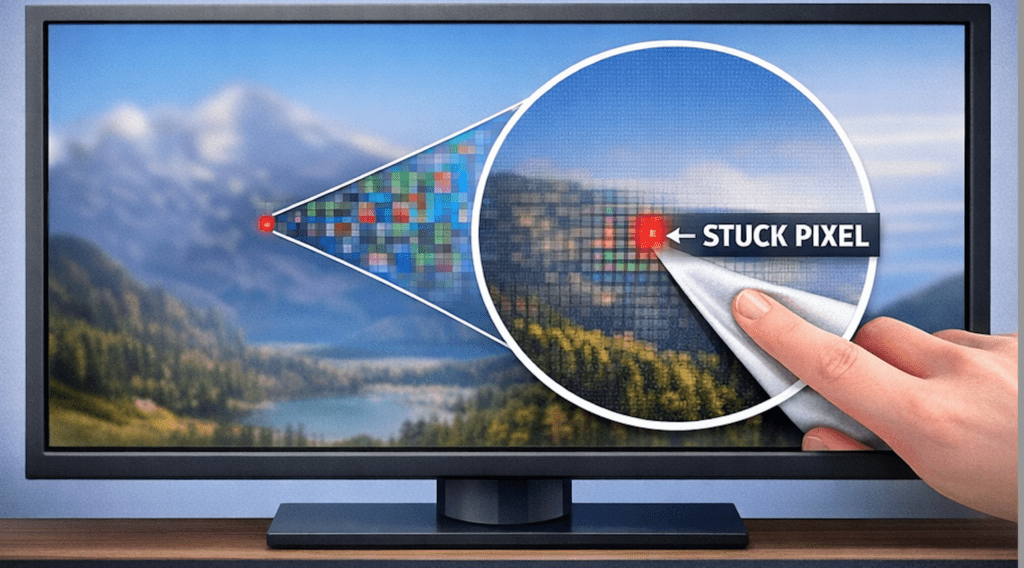
5. Physical Pressure Method
This method should be performed carefully:
-
Turn off the screen
-
Wrap a soft microfiber cloth around your finger
-
Gently press on the area with the stuck pixel
-
While applying light pressure, turn the screen back on
-
Slowly remove your finger
 Applying excessive pressure can permanently damage the screen.
6. Warm Cloth Massage
Some experts suggest that gently massaging the affected area with a warm cloth can help.
-
Heat the cloth slightly -
Gently rub the area without applying strong pressure
This may improve the movement of liquid crystals inside the pixel.
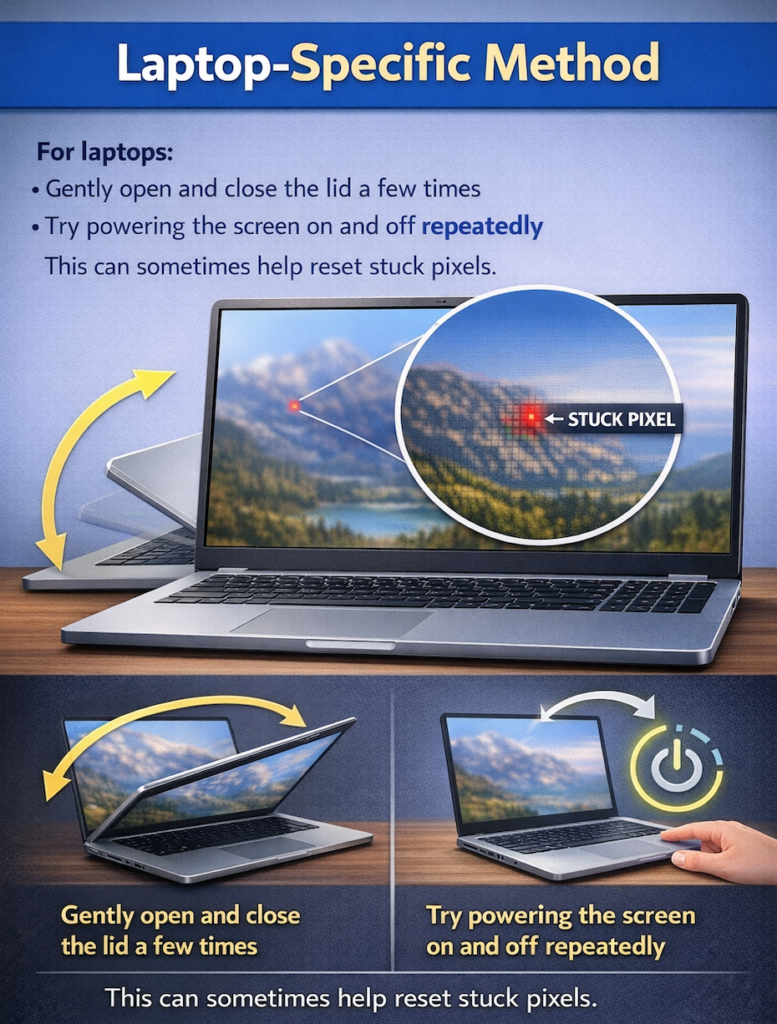
7. Laptop-Specific Method
For laptops:
-
Gently open and close the lid a few times -
Try powering the screen on and off repeatedly
This can sometimes help reset stuck pixels.
Pixel Issues Across Different Screen Types
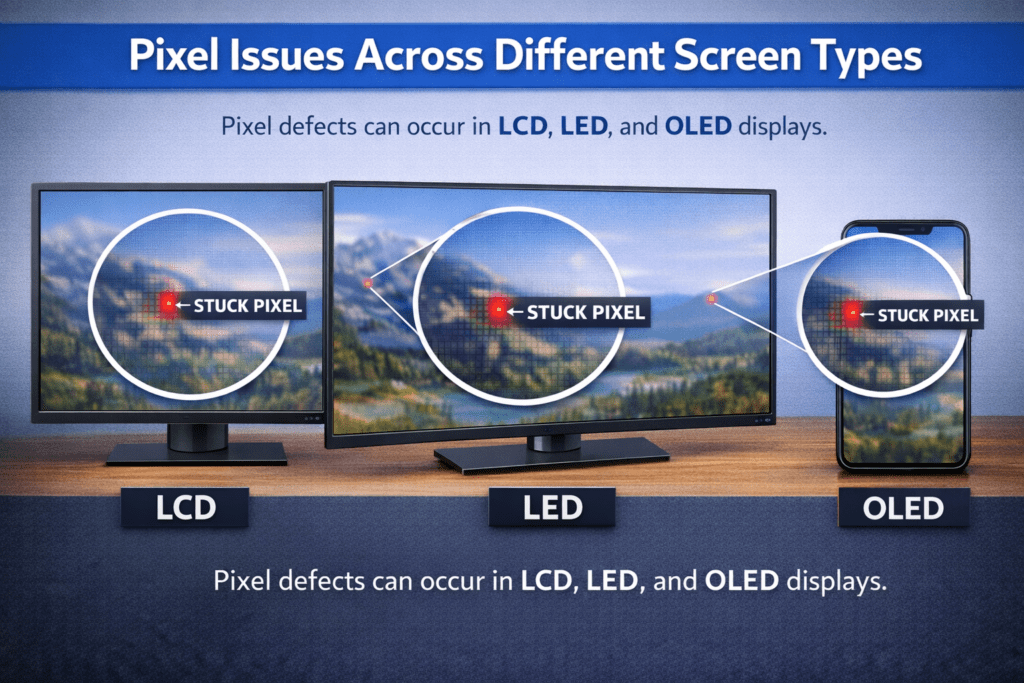
Pixel defects can occur in LCD, LED, and OLED displays.
-
LED screens are technically a type of LCD that uses LED backlighting and can experience stuck pixels.
-
These displays use crystals to control light flow, and sometimes these crystals get stuck in one position, causing color issues that may be repairable.
OLED Screens
OLED displays offer superior image quality, but they come with a higher risk of dead pixels compared to LCD screens.
If an OLED screen is dropped or subjected to physical pressure, its pixels can become permanently dead, making repair impossible.
Dead Pixel vs. Stuck Pixel: Key Differences Explained
| Feature | Dead Pixel | Stuck Pixel |
|---|---|---|
| Appearance | Appears as a permanent black dot on the screen | Appears as a colored dot (red, green, blue, or white) |
| Cause | The pixel receives no electrical energy, usually due to hardware failure | The pixel is stuck in a single color state and fails to change |
| Fixability | Approximately a 99% chance it cannot be repaired | Often fixable using software tools or gentle physical methods |
Frequently Asked Questions (FAQs)
1. What is the difference between a dead pixel and a stuck pixel?
A dead pixel appears as a black dot on the screen and does not receive power, making it a permanent hardware issue. A stuck pixel, on the other hand, remains fixed on one color (red, green, blue, or white) and is usually a temporary issue that can often be fixed.
2. Can dead pixels be fixed?
In most cases, dead pixels cannot be fixed because the pixel is completely non-functional. There is about a 99% chance that a dead pixel will remain permanently dead and require screen replacement.
3. Are stuck pixels permanent?
No, stuck pixels are usually not permanent. Since they still receive power, they can often be fixed using software tools, resolution changes, or gentle physical methods.
4. How can I check for dead or stuck pixels?
You can check for pixel defects by using screen testing tools that display solid colors. If a dot appears black or shows a different color than the rest of the screen, it may be a dead or stuck pixel.
5. Do online pixel-fixing tools really work?
Yes, online pixel-fixing tools can work for stuck pixels. These tools rapidly cycle colors on the screen to stimulate the pixel and restore normal color behavior. However, they do not work for dead pixels.
6. Is it safe to use the physical pressure method?
The physical pressure method can help fix stuck pixels, but it must be done very carefully. Applying too much pressure can damage the screen permanently. This method should never be used on dead pixels.
7. Can changing screen resolution fix stuck pixels?
Sometimes, changing the screen resolution can help reset pixel behavior and fix stuck pixels. After changing the resolution, switching back to the original setting may resolve the issue.
8. Are stuck pixels common in LCD and LED screens?
Yes, stuck pixels are common in LCD and LED screens because they use liquid crystals to control light. These crystals can occasionally get stuck in one position, causing color issues.
9. Are OLED screens more prone to dead pixels?
Yes, OLED screens have a higher risk of dead pixels compared to LCD screens. Physical damage or pressure can permanently kill OLED pixels.
10. Should I return a screen if I find dead pixels?
If a screen has dead pixels, it is recommended to return or replace it, especially if it is under warranty. Most manufacturers consider dead pixels a hardware defect.
11. How many dead pixels are acceptable?
Acceptable dead pixel counts depend on the manufacturer’s pixel policy. Some brands allow a small number of dead pixels, while others offer replacement even for a single dead pixel.