
HDD vs. SSD: Fix Your Slow PC & Speed Up Boot Times
Introduction: The Era of the “Coffee Break” Boot
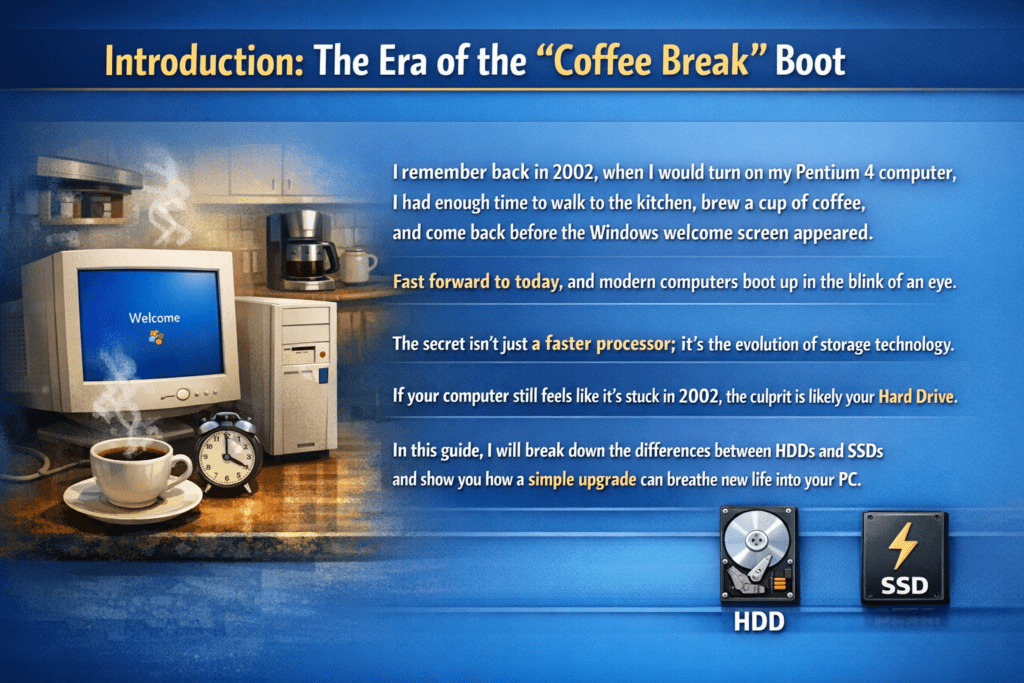
I remember back in 2002, when I would turn on my Pentium 4 computer, I had enough time to walk to the kitchen, brew a cup of coffee, and come back before the Windows welcome screen appeared. Fast forward to today, and modern computers boot up in the blink of an eye.
The secret isn’t just a faster processor; it’s the evolution of storage technology. If your computer still feels like it’s stuck in 2002, the culprit is likely your Hard Drive. In this guide, I will break down the differences between HDDs and SSDs and show you how a simple upgrade can breathe new life into your PC.
1. Hard Disk Drives (HDD): The Mechanical Veteran
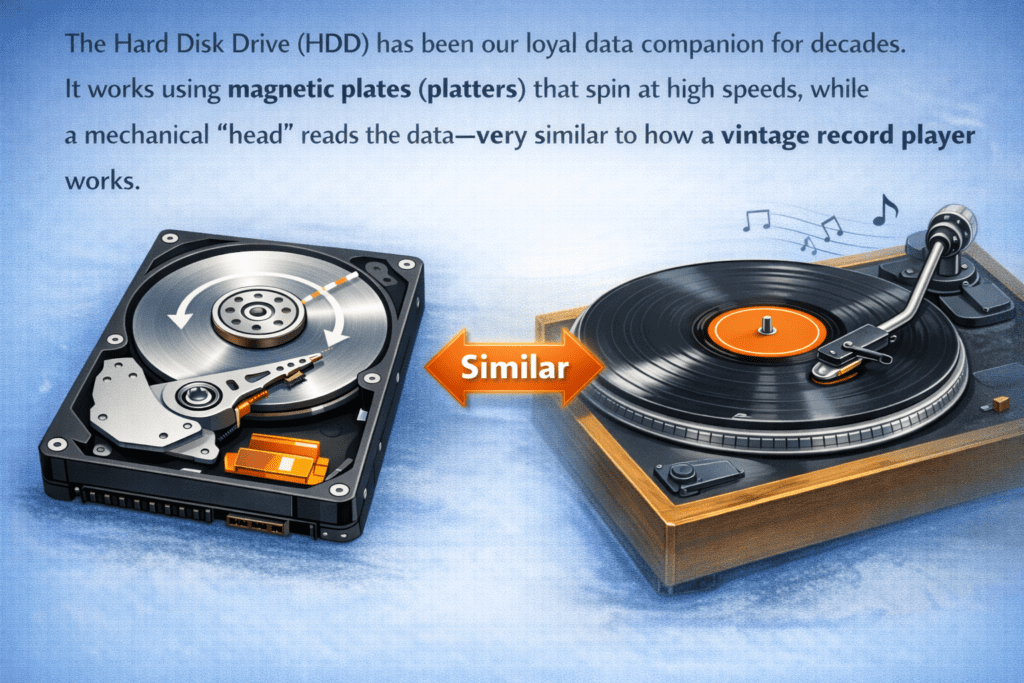
The Hard Disk Drive (HDD) has been our loyal data companion for decades. It works using magnetic plates (platters) that spin at high speeds, while a mechanical “head” reads the data—very similar to how a vintage record player works.
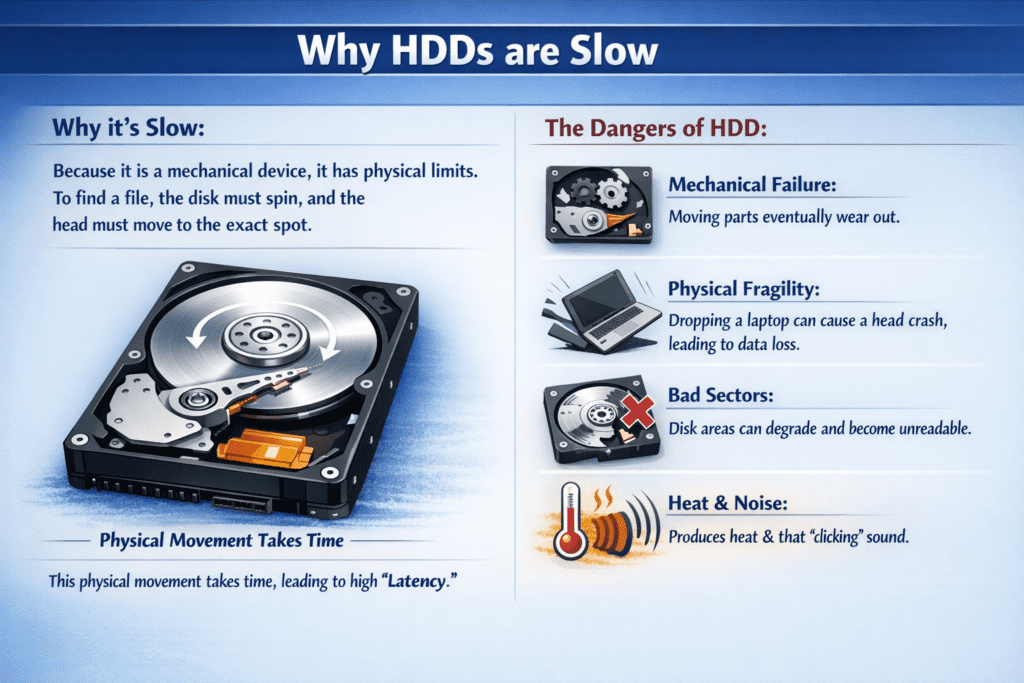
Why it’s Slow
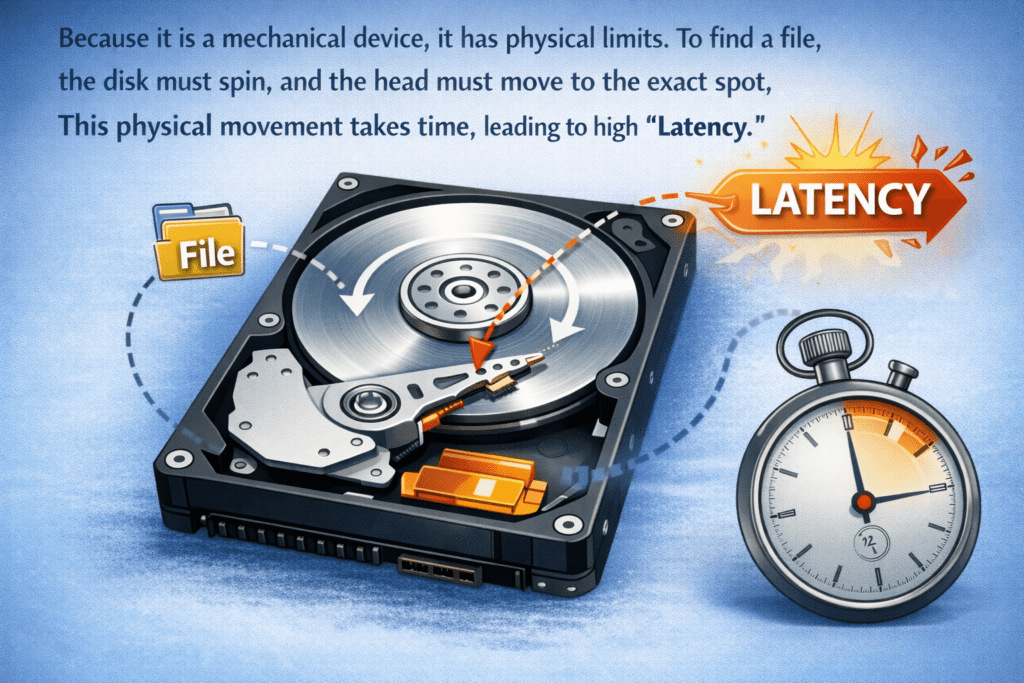
Because it is a mechanical device, it has physical limits. To find a file, the disk must spin, and the head must move to the exact spot. This physical movement takes time, leading to high “latency.
The Dangers of HDD:
Mechanical Failure: Since parts are constantly moving, they eventually wear out.
Physical Fragility: If you drop a laptop while the HDD is spinning, the head can crash into the platter, causing permanent data loss.
Bad Sectors: Over time, parts of the disk surface can degrade, making it impossible to read or write data in those spots.
Heat & Noise: The motor produces heat and that familiar “clicking” or “grinding” sound.
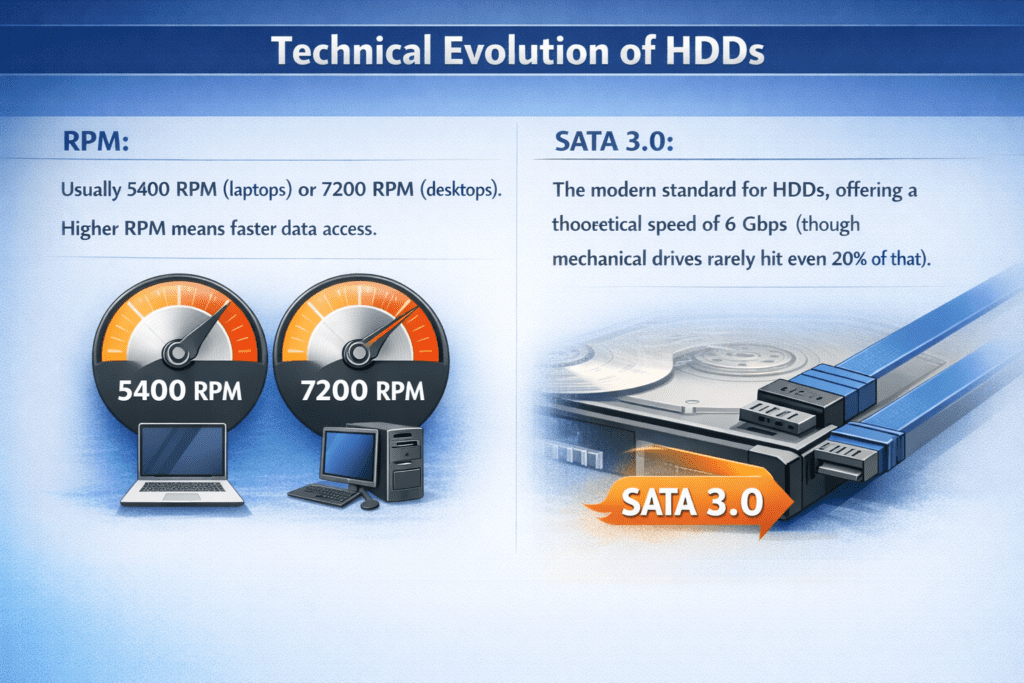
Technical Evolution of HDDs:
RPM: Usually 5400 RPM (laptops) or 7200 RPM (desktops). Higher RPM means faster data access.
SATA 3.0: The modern standard for HDDs, offering a theoretical speed of 6 Gbps (though mechanical drives rarely hit even 20% of that).
2. Solid State Drives (SSD): The Modern Speedster
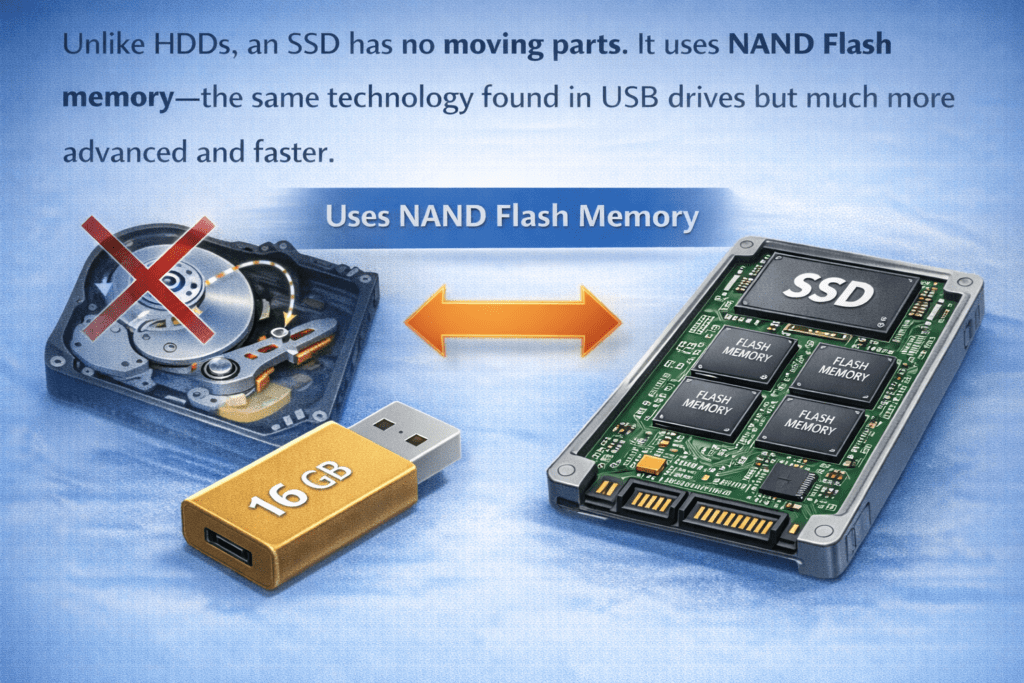
Unlike HDDs, an SSD has no moving parts. It uses NAND Flash memory—the same technology found in USB drives but much more advanced and faster.
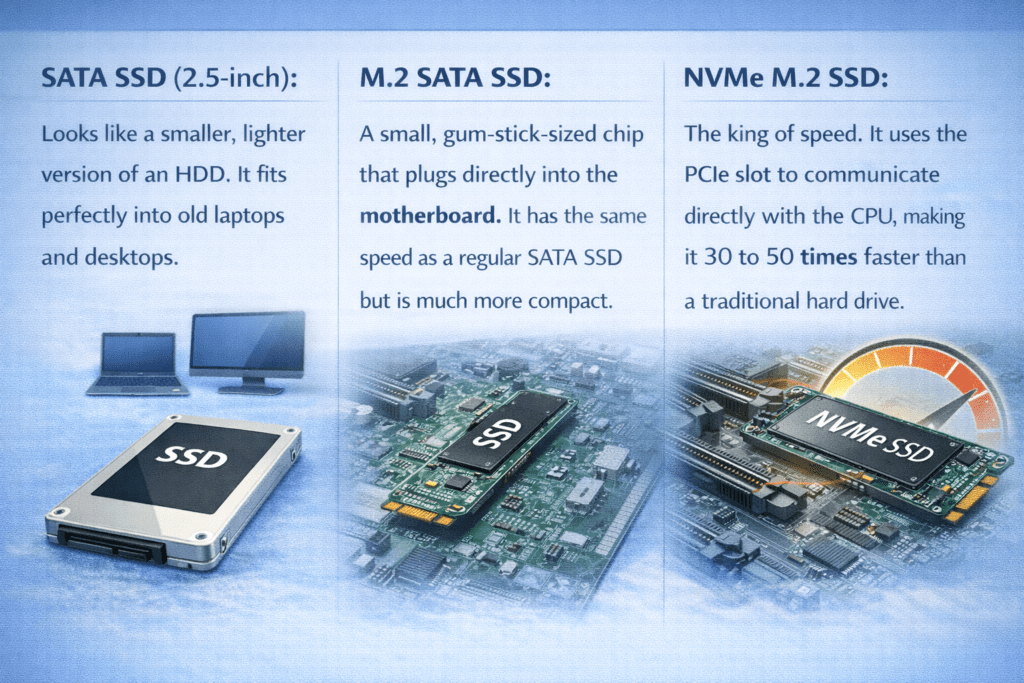
Types of SSDs:
SATA SSD (2.5-inch): Looks like a smaller, lighter version of an HDD. It fits perfectly into old laptops and desktops.
M.2 SATA SSD: A small, gum-stick-sized chip that plugs directly into the motherboard. It has the same speed as a regular SATA SSD but is much more compact.
NVMe M.2 SSD: The king of speed. It uses the PCIe slot to communicate directly with the CPU, making it 30 to 50 times faster than a traditional hard drive.
3. At a Glance: HDD vs. SSD Comparison
| Feature | Hard Disk Drive (HDD) | Solid State Drive (SSD) |
| Boot Time | 60–120 Seconds | 10–15 Seconds |
| Durability | Fragile (Moving parts) | Highly Durable (No moving parts) |
| Noise | Clicking/Spinning sounds | 100% Silent |
| Power Consumption | Higher (Drains battery) | Lower (Better for laptops) |
| Operating Temp | 35°C – 45°C | 25°C – 35°C |
4. How an SSD Works (The Brains)
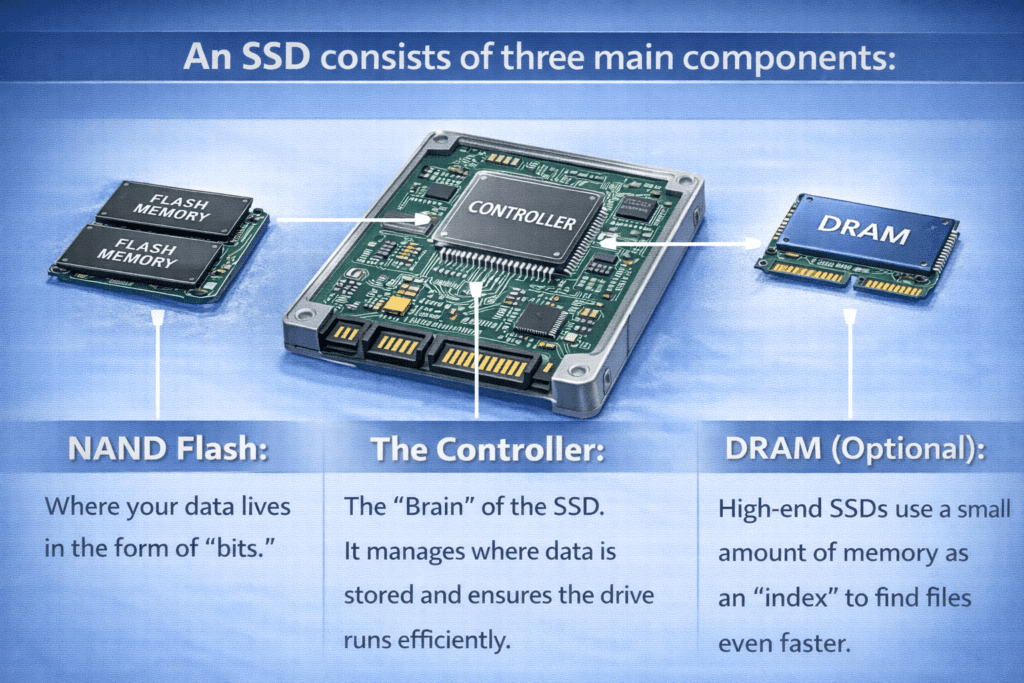
An SSD consists of three main components:
NAND Flash: Where your data lives in the form of “bits.”
The Controller: The “Brain” of the SSD. It manages where data is stored and ensures the drive runs efficiently.
DRAM (Optional): High-end SSDs use a small amount of memory as an “index” to find files even faster.
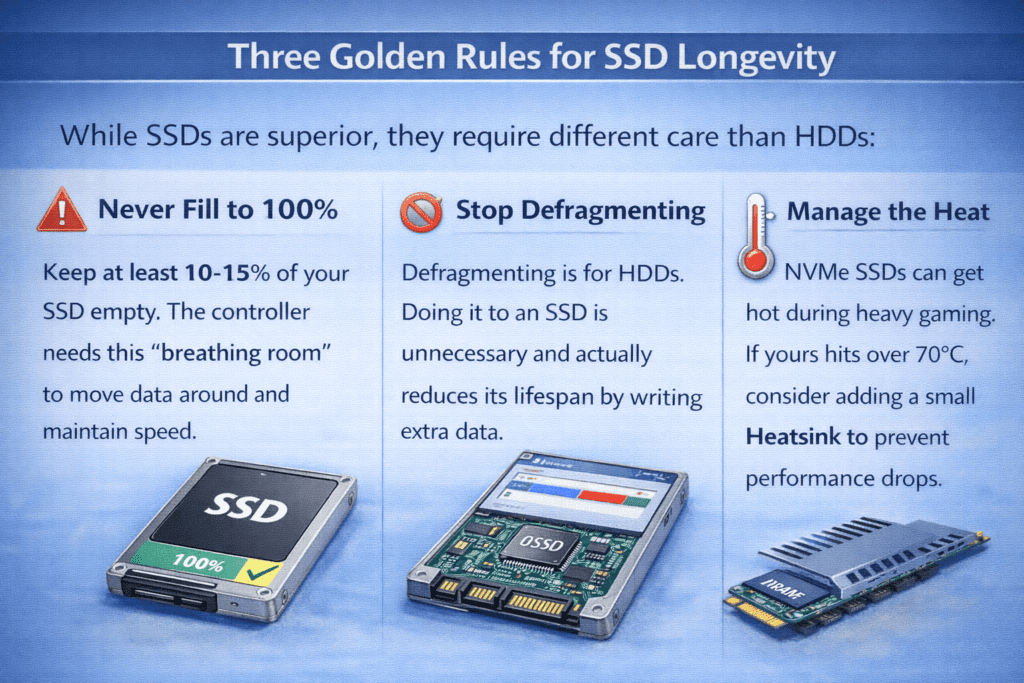
5. Three Golden Rules for SSD Longevity
While SSDs are superior, they require different care than HDDs:
Never Fill to 100%: Keep at least 10-15% of your SSD empty. The controller needs this “breathing room” to move data around and maintain speed.
Stop Defragmenting: Defragmenting is for HDDs. Doing it to an SSD is unnecessary and actually reduces its lifespan by writing extra data.
Manage the Heat: NVMe SSDs can get hot during heavy gaming. If yours hits over 70°C, consider adding a small Heatsink to prevent performance drops.
Conclusion: Is the Upgrade Worth It?
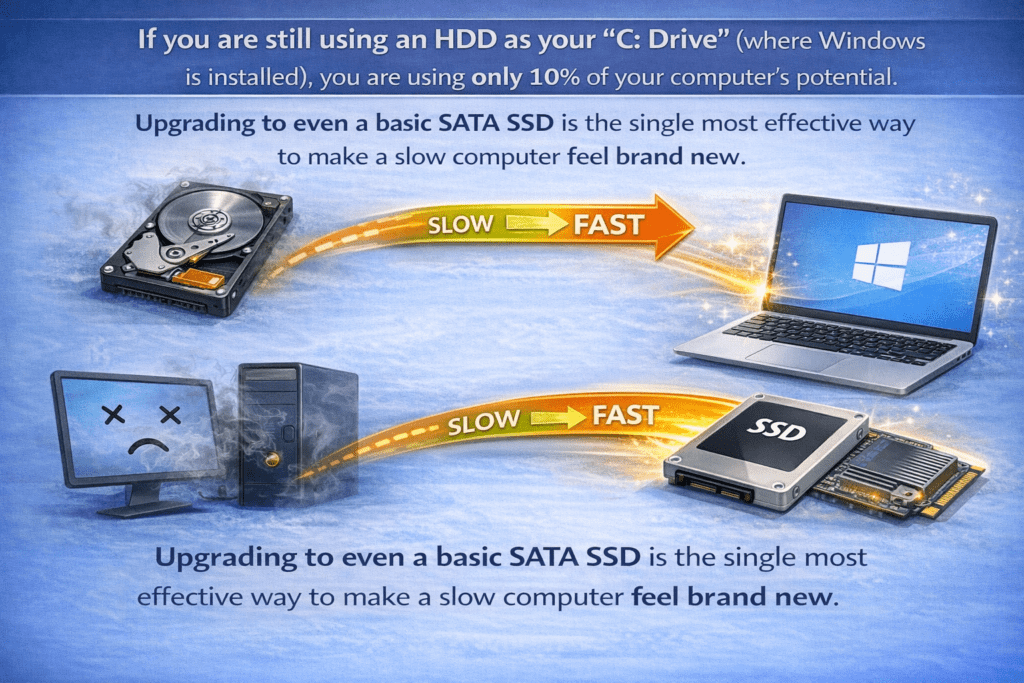
If you are still using an HDD as your “C: Drive” (where Windows is installed), you are using only 10% of your computer’s potential. Upgrading to even a basic SATA SSD is the single most effective way to make a slow computer feel brand new.
Diagnostic Tip: Use a tool like CrystalDiskInfo to check your drive’s health. If the health is below 90% or shows “Caution,” it’s time to back up your data and switch to an SSD immediately!
Frequently Asked Questions (FAQs)
Q1: Is an SSD a “magic fix” for an old laptop from the Windows 7 era?
A: Pretty much, yes! While it won’t upgrade your processor, switching from an HDD to an SSD is the most noticeable upgrade you can make. If your laptop takes 2 minutes to start, an SSD can bring that down to 15 seconds. It’s like moving from a crowded local bus to a private jet.
Q2: Will I lose my photos and files if I switch to an SSD?
A: Not at all. You have two choices: You can “Clone” your old drive (copy everything exactly as it is) to the new SSD, or you can use your old HDD as an external drive to keep your movies and photos while using the SSD just for Windows and Apps.
Q3: My hard drive is making a “clicking” sound. Should I be worried?
A: Yes! That “Tuk-Tuk” sound is the mechanical head struggling to read the disk. In the hardware world, we call this the “Click of Death.” It means your drive could fail at any second. Back up your data immediately and get an SSD before it’s too late.
Q4: Do SSDs really “die” faster than HDDs because they have a limit on writing data?
A: This is a common myth. While SSDs do have a write limit (TBW), a modern SSD will easily last 5–10 years for a normal user. Most people replace their whole computer before the SSD actually wears out.
Q5: Can I use both an HDD and an SSD in the same Desktop PC?
A: Absolutely! This is the “Pro Setup.” Use a small SSD (256GB) for your Windows and software to get that lightning speed, and keep a large HDD (1TB or more) to store your heavy files, movies, and backups. It’s the best of both worlds—speed and storage.
Q6: Does an SSD improve gaming performance?
A: It won’t give you more FPS (frames per second), but it will drastically reduce “Loading Screens.” If a game like GTA V takes 2 minutes to load on an HDD, it will likely load in 20–30 seconds on an SSD. It also stops that annoying “stuttering” when a game tries to load new areas of the map.
About the Author

Adeel Farooq
Founder & Lead Hardware Specialist at pctester.online
I am a dedicated Hardware Specialist with a journey that began in 2002 on a Pentium 4 system. Having witnessed the transition from noisy mechanical hard drives to lightning-fast NVMe storage, I specialize in helping users optimize their systems for peak performance. Through pctester.online, I combine two decades of hands-on experience with modern diagnostic tools to help you solve “slow PC” problems and extend the life of your hardware.
“My mission is simple: To make sure your PC works as hard as you do.”